Have you ever felt like you have been hacked or your system info and data is getting tracked? Do you know what to do next? If not, then this blog post is specifically for you my dear script kiddie brother and his sister! The blog explains how to check if your desktop, laptop is being hacked, if it is sending data to unauthorised sources or if it has an active malware installed.
Pre requisites you need to know to learn the steps in case if your PC is hacked
- Services & Ports
Every operating system serving you with any type of feature in a network like browser, file transfer, print or anything, it is using a particular service to communicate. These services transaction through ports. The ports are like an entry door to your system.
- Processes
The tasks you run on a system are basically running in the background controlled by your CPU registers.
- Backdoor
This is more like a "peechhe ka darwaza" to your PC. An entrance and exit through which a malware can be interacting and sending the data to the hacker. Usually the victim is unaware of this open port of a pathway.
- Task Manager
The manager through which we can monitor and control the operations running Netstat command with its parameters The command helps to determine the statistics of current network connection. (parameters are explained below in the tutorial steps)
- What are the signs that indicate if your system is hacked or data is compromised?
If while using your system, you experience:
- Sudden Slow Performance on certain apps or entire system, there might be malicious background processes running and using the resources.
- If your apps or programs start crashing regularly.
- When a program which is unauthorised is installed
- Webcam working abnormally like turning on/off without instructions.
- When your cursor starts moving without you using the system. It is a sign of RATs.5.
6. System Hardening
A process of securing your system by reducing security vulnerablities and configuring the safety and security of system for future attack attempsvulnerabilities
Steps to check if your PC is hacked
- To start off, you need to open a terminal or command prompt with root access or admin rights.
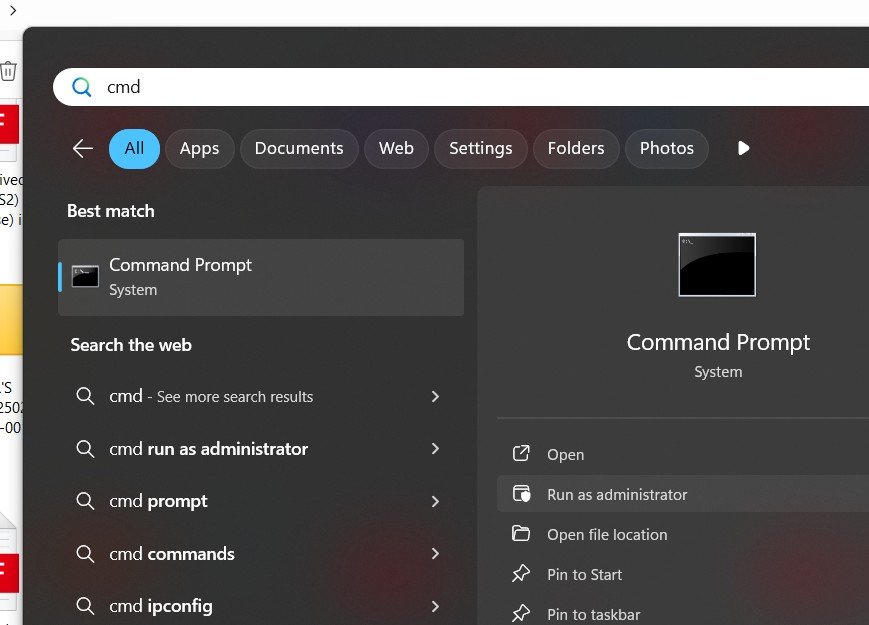
2. Here you need to determine the current network transactions. To do so we will be running the netstat command with the following parameters netstat -ona *Note that the parameters may change based on your operating system.
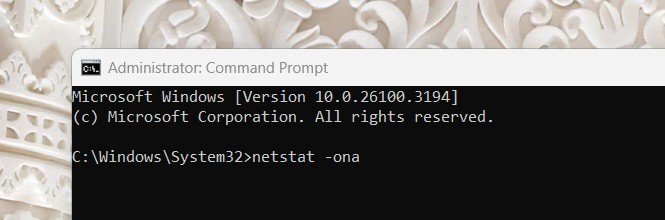
- O: Displays the process ID (PID) associated with each connection.
- n: Shows IP addresses in numeric format (instead of resolving domain names).
- a: Lists all connections (both active and listening).
3. For Linux, you can use socket statistics
ss -tunp
4. The command will share the list of all the processes utilising network with their respective client/server IP addresses.
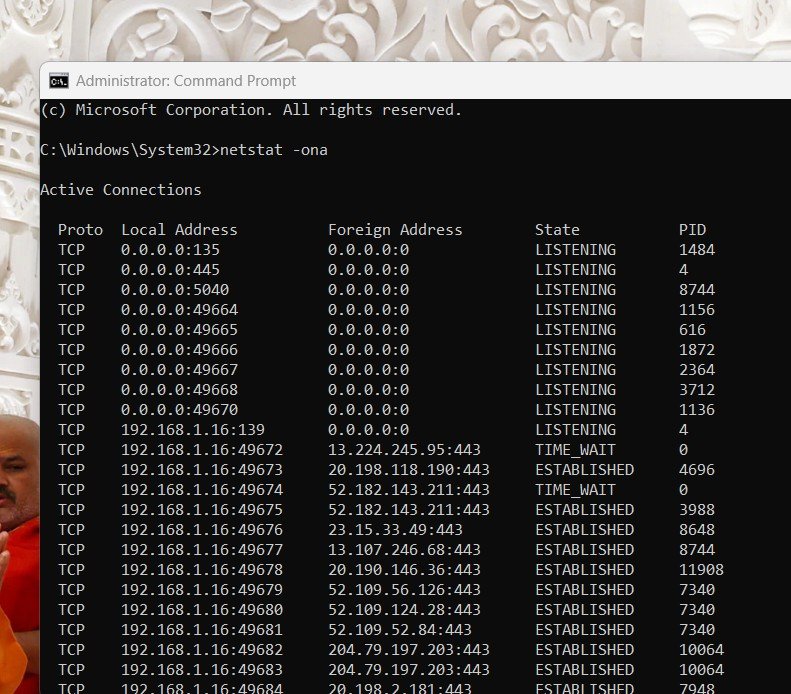
- The Local Address is your device.
- The Foreign Address is the external server you're connected to.
- Suspicious activity: If you see a random unknown IP in ESTABLISHED state, it's worth investigating.
5. Firstly you need to evaluate the systems connected in the current network. These are complete safe. Note all the Network addresses with their IPs
Safe addresses are typically:
- Your own system (Localhost):
- 127.0.0.1 (IPv4) or ::1 (IPv6) – Internal loopback address, always safe.
- Private Network IPs (If you are in a private network like home or office):
- 192.168.x.x (Common private IP range)
- 10.x.x.x (Used in corporate networks)
- 172.16.x.x – 172.31.x.x (Used in some private setups)
These are devices in your local network, such as your router, printers, or another PC.
6. Next, we will be checking the foreign addresses to which we still have a running connection established.
Detect Foreign (Suspicious) Addresses
Foreign IP addresses refer to external connections established from your system to another machine. You need to
check if these IPs are legitimate or suspicious.
- Look for Unknown Public IPs:
- If you see an external IP not associated with your ISP, company, or any app you recognize, it could be suspicious.
2. Monitor Unusual Ports:
- Common safe ports:
-
- 80, 443 (Web traffic)
- 22 (SSH, remote login)
- 3389 (Remote Desktop)
- Suspicious ports (often used by malware):
-
- 4444 (Commonly used by Meterpreter malware)
- 1337, 6666, 8888, 9001 (Often used for botnets, proxies, or Trojans)
- Any high-numbered unknown port in an ESTABLISHED state
Unsafe Ports you need to be very carefull of:
| 3389 |
Remote Desktop |
Risky if unexpected |
| 4444 |
Malware (Meterpreter) |
Very suspicious |
| 1337, 6666, 8888 |
Used by botnets, Trojans |
Dangerous |
7. To do so, we will be noting their IP addresses with their respective process IDs
Example: In our case, all have 443 as port, so lets just take IP address to cross check (Know that these are safe ports only)
If in cases you want to check IP address and their hosts, use
virustotal or do a basic whoislookup using whois command
8. Open the task Manager using ctrl+alt+del and go to processes tab.
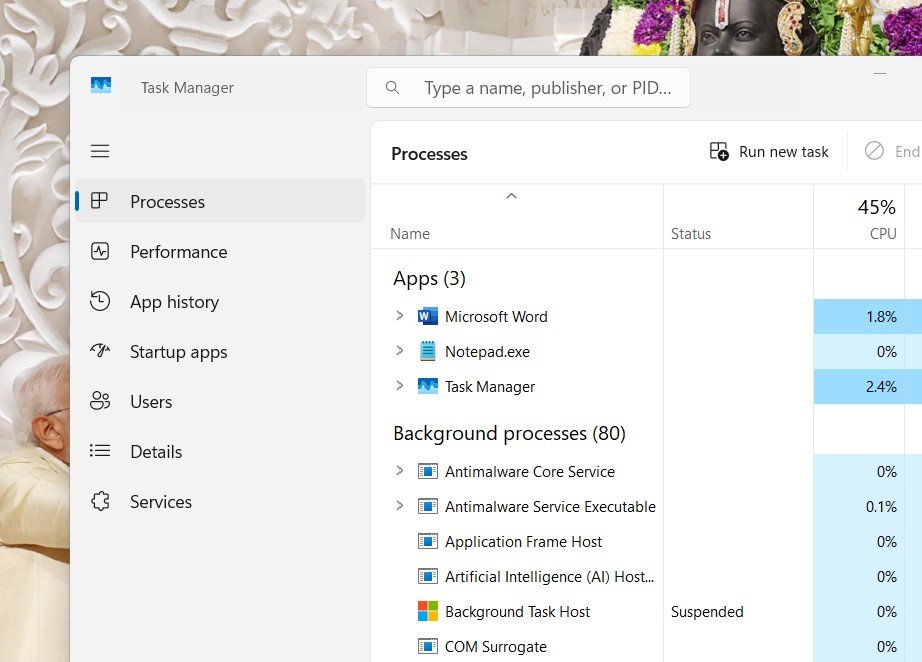
9. Keep an eye the noted process IDs and the processes running on them. For example on process ID in this screenshot PID: 4696 belongs to windows host process. So it's a safe connection as we are using Microsoft Windows 10. Another PID: if it is unknown, google the name to know the process. In most cases you will find, it's a simple windows/linux background processes.
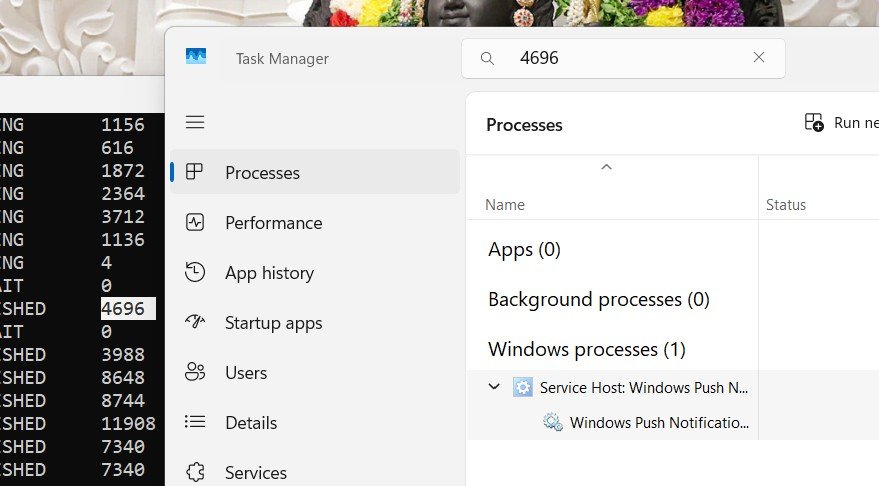
10. Repeat the process for all process IDs. If you found that a process is unknown and not available on Google's you can check the exploit db repository. It is a directory available for all cyber attack codes and payloads.
- If found a payload based process, right click and end the process Restart the system and that's it You are free from the hacker.
As now you have deleted the malicioous payloads or connections, its time to reconfigure your system’s security and do atleast a basic system hardening so that your PC don't get hacked again.
- First thing, update your OS for security patches and software updates
- Update the antivirus software. If you don’t have it, get one. (Try to get an antivirus having a maximum signature database for strengthing security)
- Close any open ports. Especially the RDP and other access based ports.
- Regularly perform the above exercise once a month atleast.
- 2FA is a must
Thanks mate for reading my blog, Jai Shree Ram!
Learn
How to do facebook phishing?